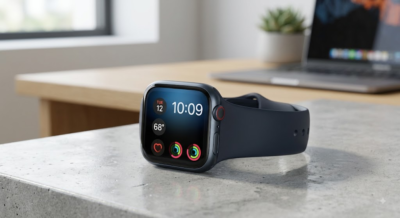
Few things are more frustrating than glancing down at your Apple Watch during an evening workout or dinner only to see the dreaded red low-battery icon. While Apple Watch models offer incredible health tracking and seamless connectivity, power management remains a daily hurdle for heavy users.
If you are tired of your smartwatch giving up before your day is over, you do not need to turn off every useful feature to make it through the night. Here are 5 quick, high-impact battery-saving adjustments that will keep your Apple Watch powered all day long.
1. Toggle Off the Always-On Display
The Always-On Display keeps your watch face visible at all times, but driving those screen pixels continuously is one of the single biggest battery drains on Apple Watch Series 5 and newer models.
- How to turn it off: Open Settings on your Apple Watch (or inside the Watch app on your iPhone), select Display & Brightness, and toggle Always On to Off.
- Pro Tip: If you love having the display active at work, consider turning it off only on long travel days or weekends when you know you will be away from a charger.
2. Limit Background App Refresh
Just like your iPhone, your Apple Watch continuously refreshes background data for apps like weather, news, and social media so they are instantly updated when opened. However, dozens of apps fetching data every few minutes quickly depletes your battery.
- How to adjust it: Open the Watch app on your iPhone, tap General, select Background App Refresh, and switch off tracking for any apps you do not need instant updates from.
- Best approach: Leave it enabled only for critical apps like Messages, Fitness, or your primary calendar.
3. Disable Environmental Sound Measurements (Noise App)
The built-in Noise app periodically samples ambient sound levels around you to alert you if decibel levels become harmful to your hearing. While it is a great health feature, keeping the microphone actively listening and analyzing audio in the background consumes noticeable power.
- How to disable it: Go to Settings on your Apple Watch, tap Noise, select Environmental Sound Measurements, and toggle Measure Sounds to Off.
4. Prune Unnecessary Notifications & Reduce Haptics
Every time your watch vibrates, lights up its screen, or plays a chime for a notification, its Taptic Engine draws power. If your watch is buzzing continuously with group chat messages, game alerts, and email notifications, your battery life will take a massive hit.
- Audit notifications: Open the Watch app on your iPhone, select Notifications, and scroll through the list. Turn off mirror alerts for non-essential phone apps.
- Reduce Haptic Strength: In Settings > Sounds & Haptics, set Haptics to Default rather than Prominent, or turn off sound chimes altogether to save audio amplifier power.
5. Leverage Low Power Mode Strategically
Introduced in watchOS 9, Low Power Mode turns off battery-hungry features (like the Always-On display, background heart rate sampling, and blood oxygen readings) while preserving core functionality like activity tracking, emergency SOS, and timekeeping.
- How to activate it: Swipe up to access the Control Center, tap the Battery Percentage, and toggle on Low Power Mode. You can choose to turn it on indefinitely or set it for 1, 2, or 3 days.
- When to use it: Enable it preemptively when you land at 50% battery mid-afternoon, or automatically turn it on when heading out for long outdoor trips.
Summary Checklist for Maximum Battery Life
| Feature / Setting | Recommended State | Impact Level |
| Always-On Display | Off (or Wrist Raise only) | High |
| Background App Refresh | Selective / Off | High |
| Noise Monitoring | Off | Medium |
| App Notifications | Critical Apps Only | Medium |
| Low Power Mode | As-Needed (Below 30%) | High |
By making just two or three of these minor tweaks, you can easily add 4 to 8 hours of runtime to your Apple Watch—ensuring it reliably lasts from morning coffee all the way through bedtime sleep tracking.